Connect to Notion
You only need to connect ETN to Notion once. After that, all clients share the same authorization.
- WeChat Mini Program
- Chrome Extension
- Web App
Steps
The Mini Program cannot open an external browser directly — you'll need to copy the authorization link and paste it into a browser manually.
Step 1: Open the Mini Program
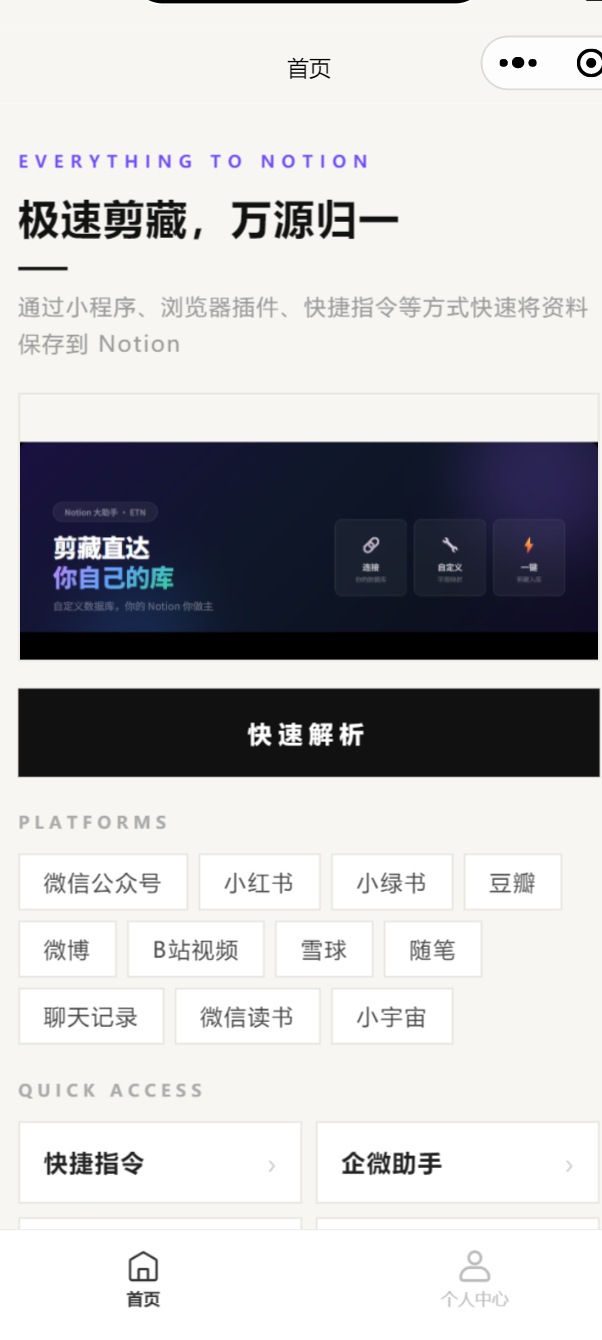
Search for 「EverythingToNotion」 in WeChat and open the mini program. On first launch, you'll see a "Connect Notion" button in the center of the home screen.
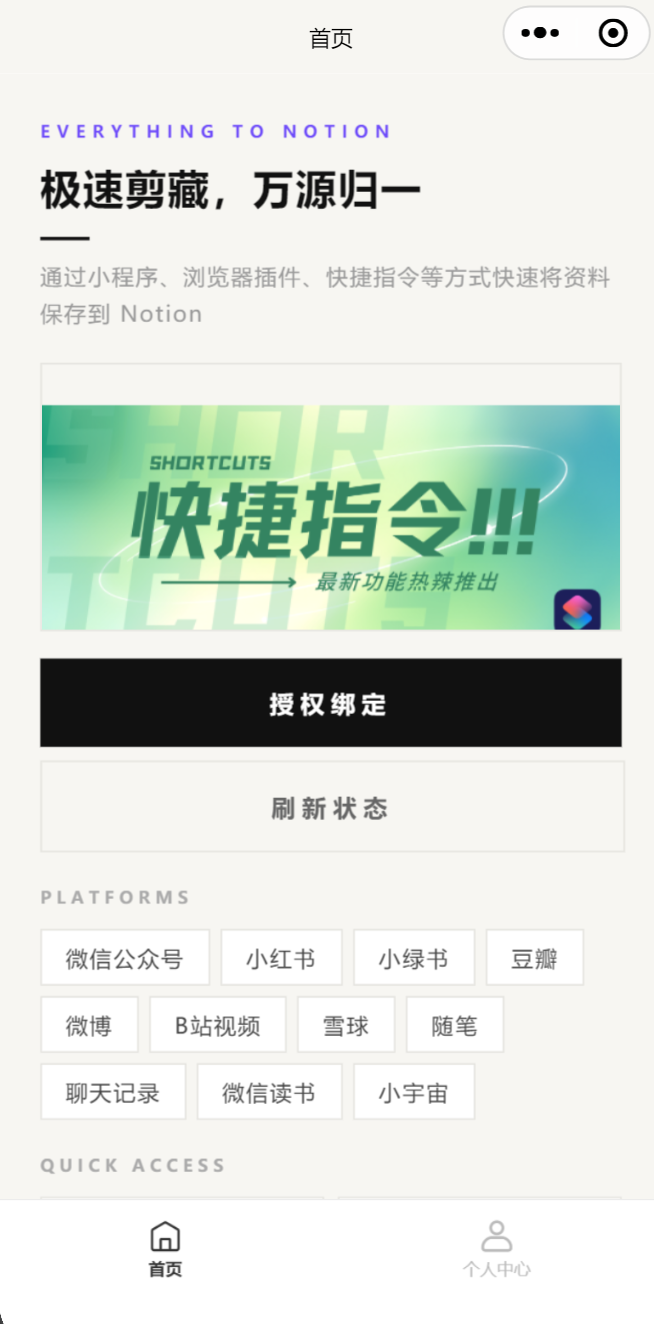
Step 2: Get the authorization link
Tap "Connect Notion". A dialog appears:
"Authorization link copied to clipboard. Please open it in an external browser to authorize."
Tap "Got it" — the link is now on your clipboard.
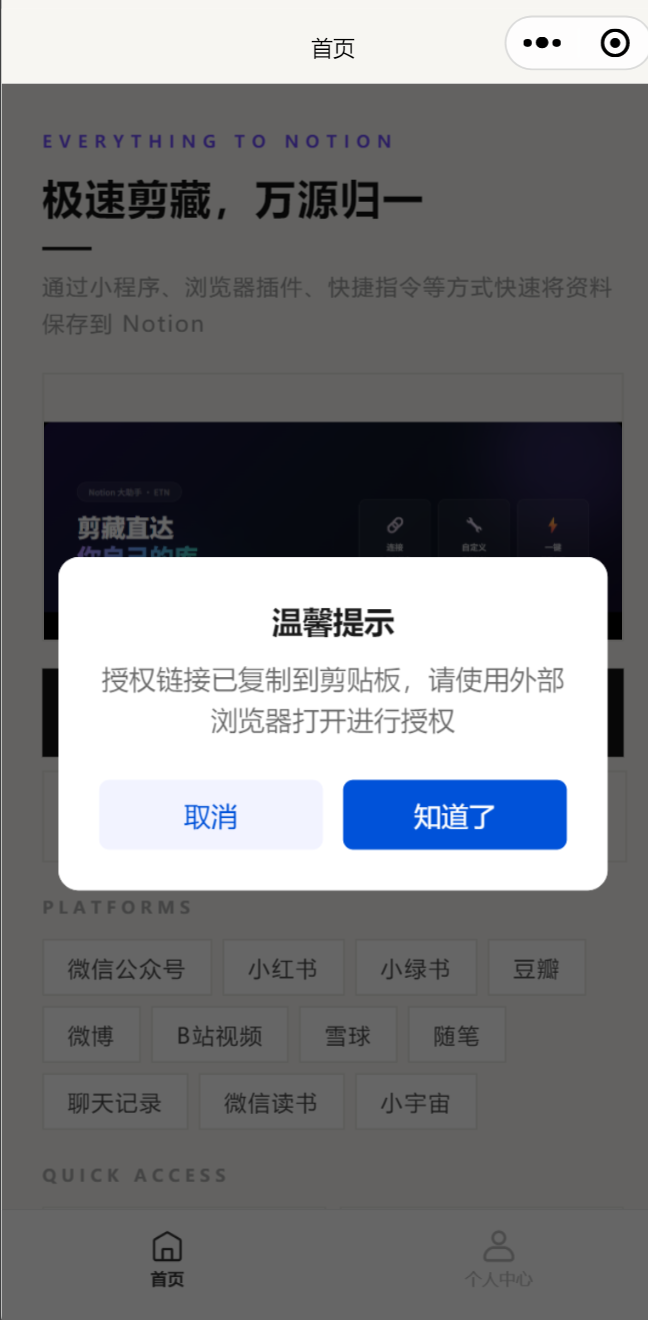
Step 3: Open in an external browser
Open Safari or Chrome on your phone, paste the link, and navigate to it.
You must use an external browser. WeChat's built-in browser cannot complete Notion authorization.
Step 4: Authorize in Notion
- Select your Notion workspace
- Click "Allow access"
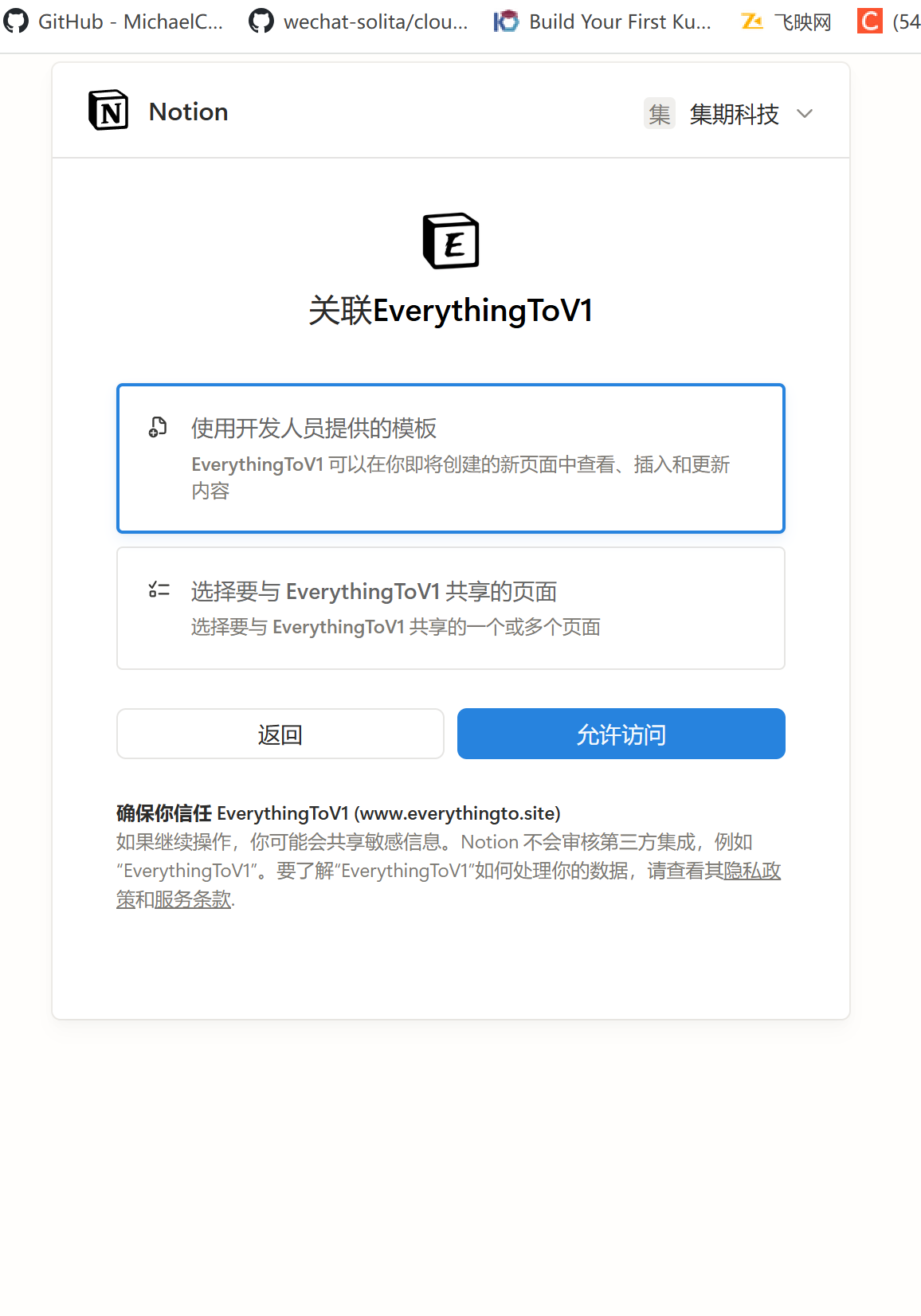
ETN will then process the connection automatically:
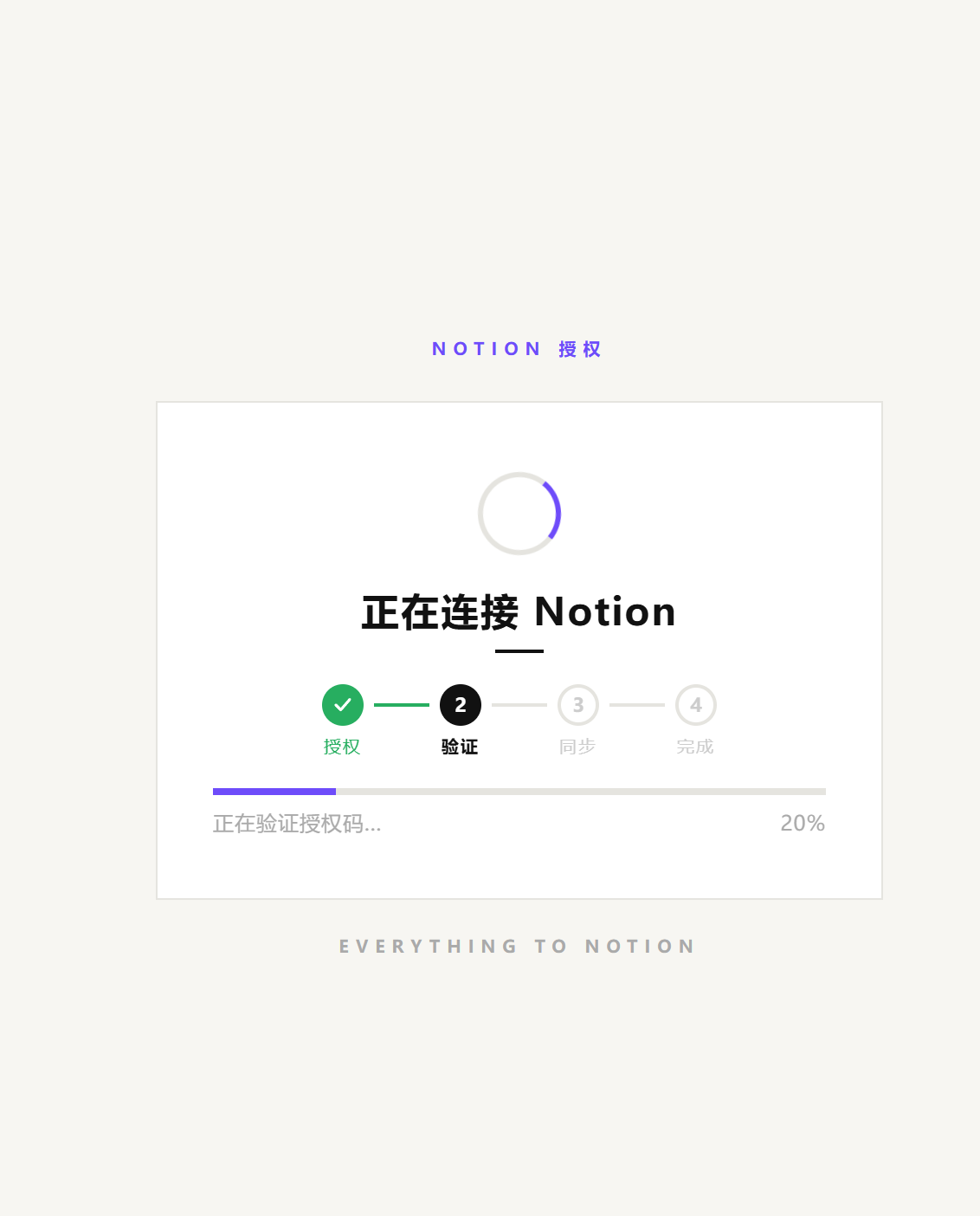
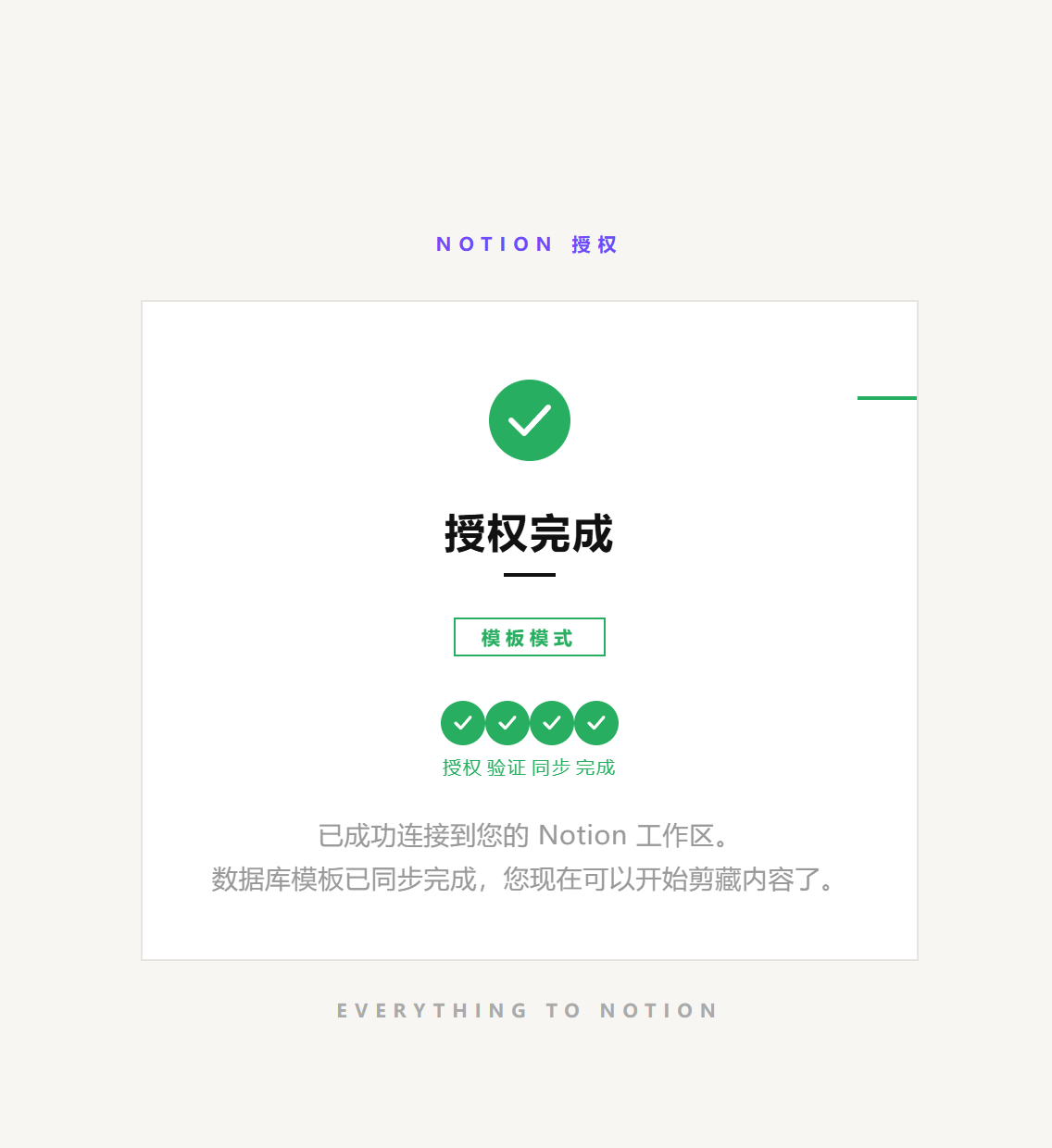
Step 5: Confirm in the Mini Program
Return to the mini program and tap "Refresh status". Once the status shows "Authorized", you're connected. The home button will also change to "Quick Parse".
Steps
Step 1: Open the settings panel
Click the ETN icon in your browser toolbar to open the popup, then click the gear icon in the top right to enter settings.
Step 2: Trigger Notion authorization
Find the "Notion Connection" section in the settings panel and click the "Binding status" row.
The extension will automatically:
- Copy the Notion authorization link to your clipboard
- Open the authorization page in a new tab
Step 3: Authorize in Notion
The new tab opens Notion's official OAuth page:
- Log in to your Notion account if needed
- Select the workspace you want to use
- Click "Allow access"
Step 4: Confirm binding status
Return to the extension and reopen the settings panel. The "Notion Connection" status badge turns green showing "Connected".
Steps
Step 1: Log in to ETN
Visit everythingto.site and click Login in the top right.
Two login options:
- Enter your UUID (existing users)
- Enter your email to receive a verification code
Step 2: Go to your account dashboard
After login you're redirected to the dashboard. The top card shows your current Notion authorization status.
If it shows "Not connected", click "Connect Notion".
Step 3: Authorize in Notion
The page redirects to Notion's official OAuth page:
- Select your workspace
- Click "Allow access"
After authorization, you're redirected back to ETN and a "Notion connected successfully" dialog appears.
Step 4: Confirm connection
The status card at the top of the dashboard turns green showing "✓ Connected".
After connecting
During authorization, you'll be asked how to set up your Notion workspace:
Choose a template: ETN automatically creates the page in your Notion. No further configuration needed — you can start clipping right away.
Choose a page: You selected an existing Notion page. You'll need to configure the database:
- Open the database configuration page (Extension: settings panel → Database settings; Mini Program / Web: dashboard → Database configuration)
- Complete the field mapping (title, tags, cover, etc. → which Notion property)
- Save — then you're ready to clip
Next steps: